
Audio Hijack 4.6.1
Record Mac Audio from Any App, Website, or Mic
Screenshots
Click to enlarge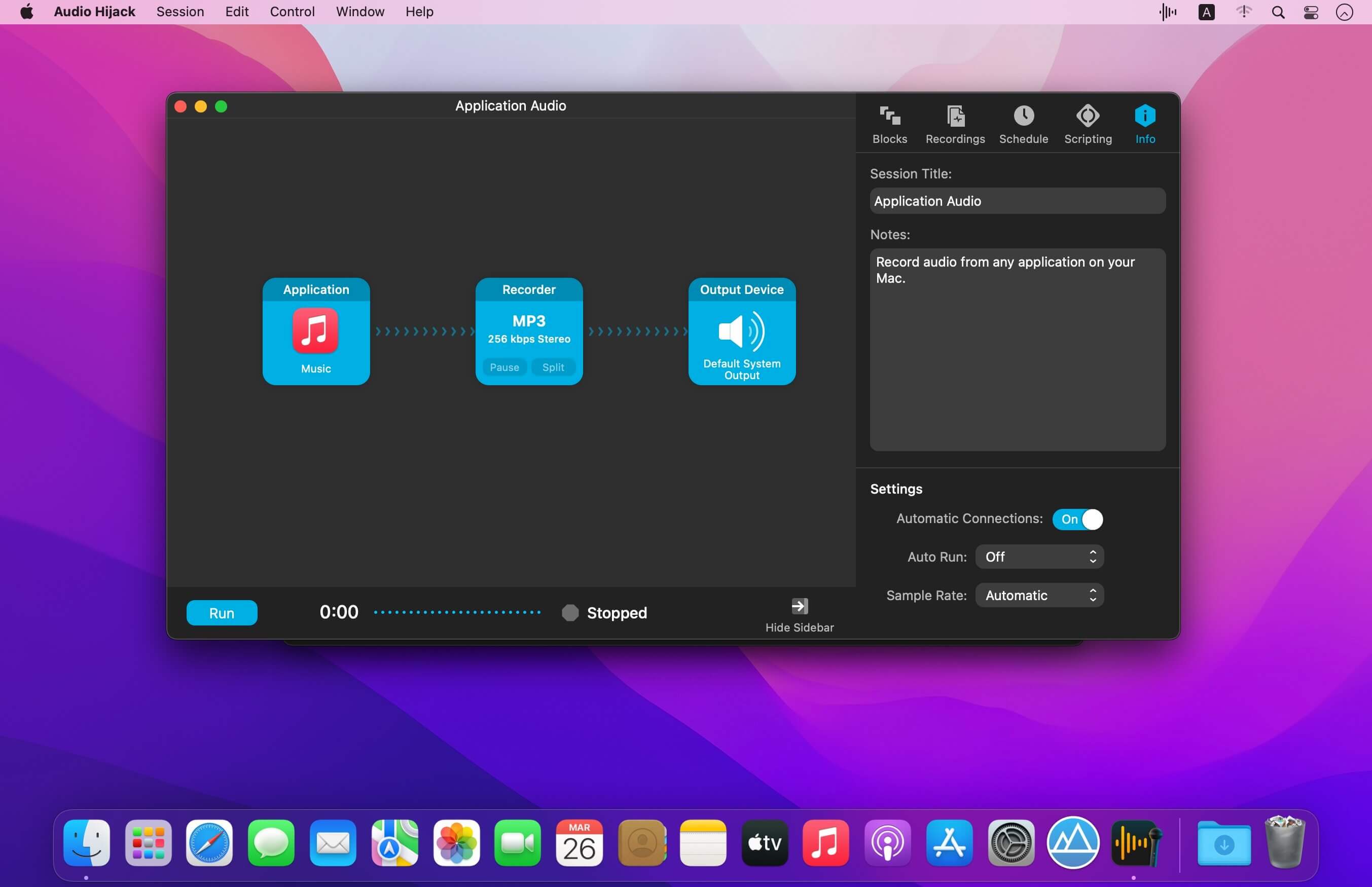
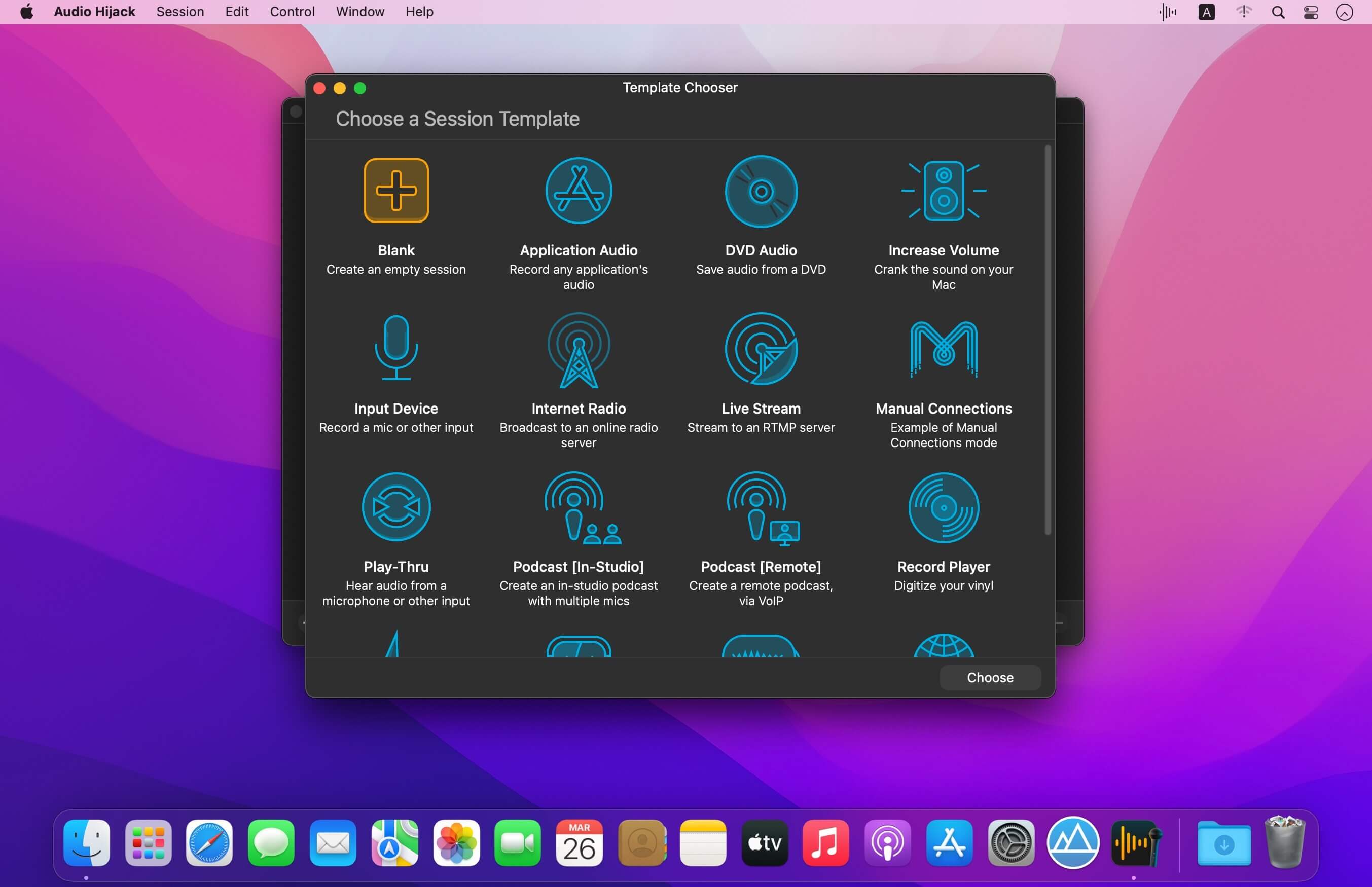
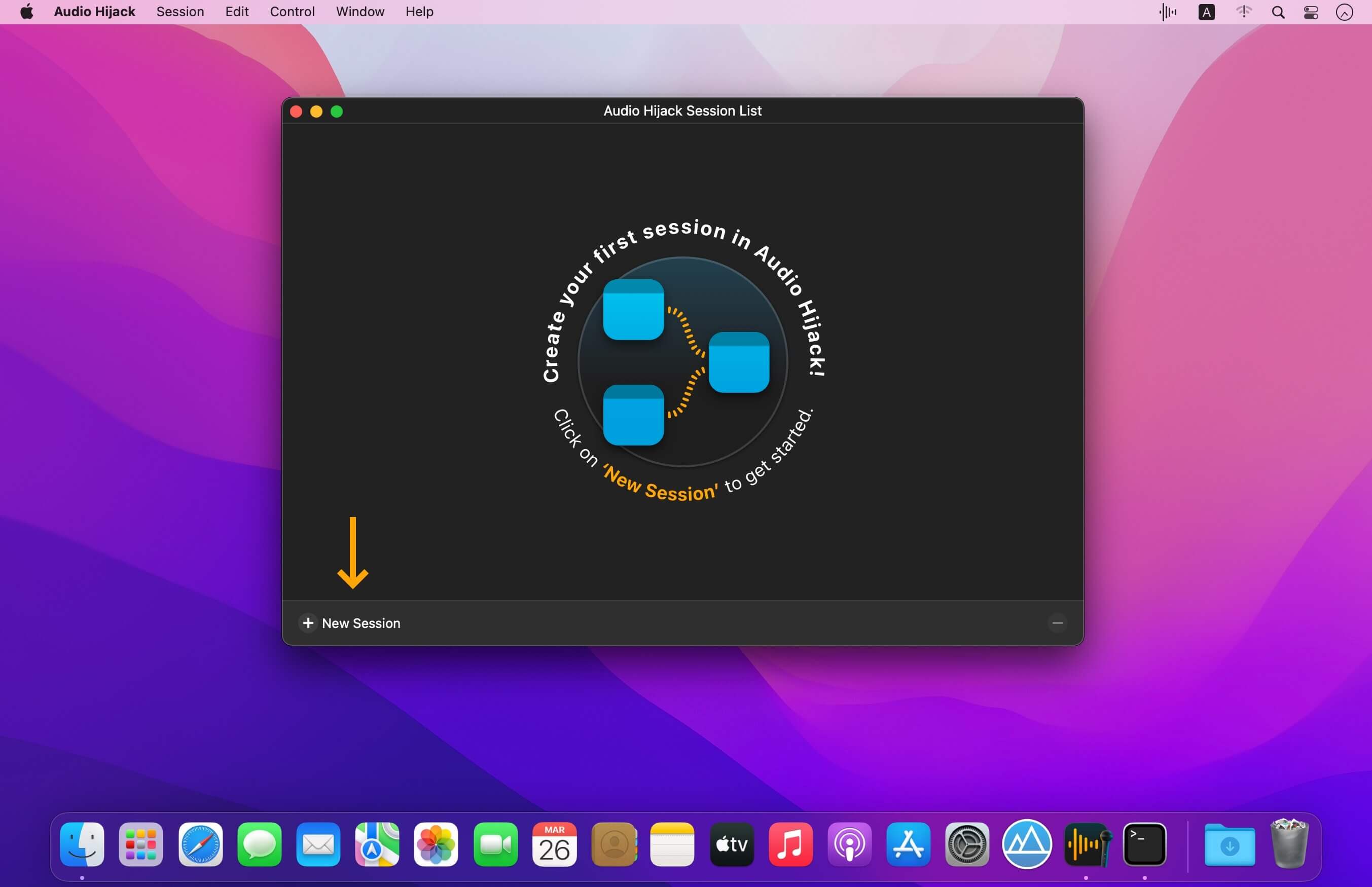
Audio Hijack records anything you can hear on your Mac: a stream playing in Safari, a FaceTime call, a track in a music app, or a microphone plugged into a mixer. You build a session by connecting a source, any adjustments you want, and an output, then press record.
Record from apps, devices, or the whole system
The Application block picks up audio from Safari, FaceTime, or any other app running on your Mac. Input devices such as microphones and mixers work the same way. If you'd rather catch everything at once, the System Audio source records all the sound your Mac is playing.
Podcasts, calls, and transcripts
Record in a studio with mics and a mixer, or bring in a remote guest over Zoom or FaceTime. The Simple Compressor block evens out loud and quiet moments before you export. When the session ends, you can turn the recording into text. Transcription runs locally on your Mac with no ongoing charges, so interviews and meetings stay on your machine.
Fix quiet audio and reroute sound
Laptop speakers too quiet for a video or a stream? The Magic Boost and Volume blocks raise the level well past what the app offers on its own. Pair Audio Hijack with Loopback, a separate utility from the same developer, to take sound from an app or microphone, adjust it, and send it into another app.
Stream live or run an internet radio station
The Live Stream output sends audio to RTMP servers such as YouTube Live, Twitch, and Facebook Live. The Broadcast output connects to Shoutcast and Icecast servers if you want to run an internet radio station.
Key features
- Application capture: record audio from Safari, FaceTime, Zoom, and other apps on your Mac
- Input devices: record microphones, mixers, and other audio hardware
- System Audio: capture all Mac audio in a single recording
- Simple Compressor: even out voice levels for podcasts and interviews
- Magic Boost and Volume: raise the level of quiet apps and web audio
- Loopback pairing: route adjusted audio from one app or mic to another app
- Live Stream output: send audio to RTMP servers like YouTube Live and Twitch
- Broadcast output: feed Shoutcast and Icecast servers
- Local transcription: convert speech to text on your Mac
Audio Hijack 4.6.1:
New “Control Center” Special Source
On macOS 27 (Golden Gate) and higher, the new “Control Center” special source captures audio the Mac receives via AirPlay, as well as volume adjustment blips. This replaces the former “AirPlay Receiver” special source due to changes in Golden Gate. More details on special sources can be found in this support article.
Previously, certain Audio Units which present Cocoa menus could crash on macOS 27 (Golden Gate). Now, they do not.
A rare issue where certain Audio Units could fail to remain visible once detached on macOS 27 (Golden Gate) has been fixed.
VoiceOver navigation of the “Session List” window has been improved. In addition, keyboard controls for selecting multiple blocks and multiple items in lists now support VO-Cmd-Return for multi-select.
When capturing only some channels of a multichannel device, audio from non-captured channels is no longer incorrectly muted.
The Audio Unit hosting service has been improved to no longer prevent the capture of screenshots of plugin windows. As well, a rare crash which could occur when removing an effect has been fixed.
A rare crash which could occur when a “Broadcast” block attempts to reconnect while sending audio has been snuffed out.
Multiple small interface improvements and fixes have been made for macOS 27 (Golden Gate), including:
- The mouse cursor now correctly updates to indicate resizing of columns in the “Session List” window is possible.
- Clicking on a pinned Audio Unit will no longer incorrectly cause other pinned Audio Unit popovers to hide.
- Scrolling while simultaneously dragging a block or a manual wire connection now works as expected.
- A minor drawing bug which led to undesired lines in the bottom right of sessions has been fixed.
Audio Hijack’s interface has been reviewed and refined for touch input on the Mac. If you have feedback, please don’t hesitate to reach out.
The “Restore icons in menus” hidden setting has been removed from the “Debugging” window. For more on the “Debugging” window, see this support article.