
Unclutter 2.3.0
Mac clipboard manager with a file shelf and notes
Screenshots
Click to enlarge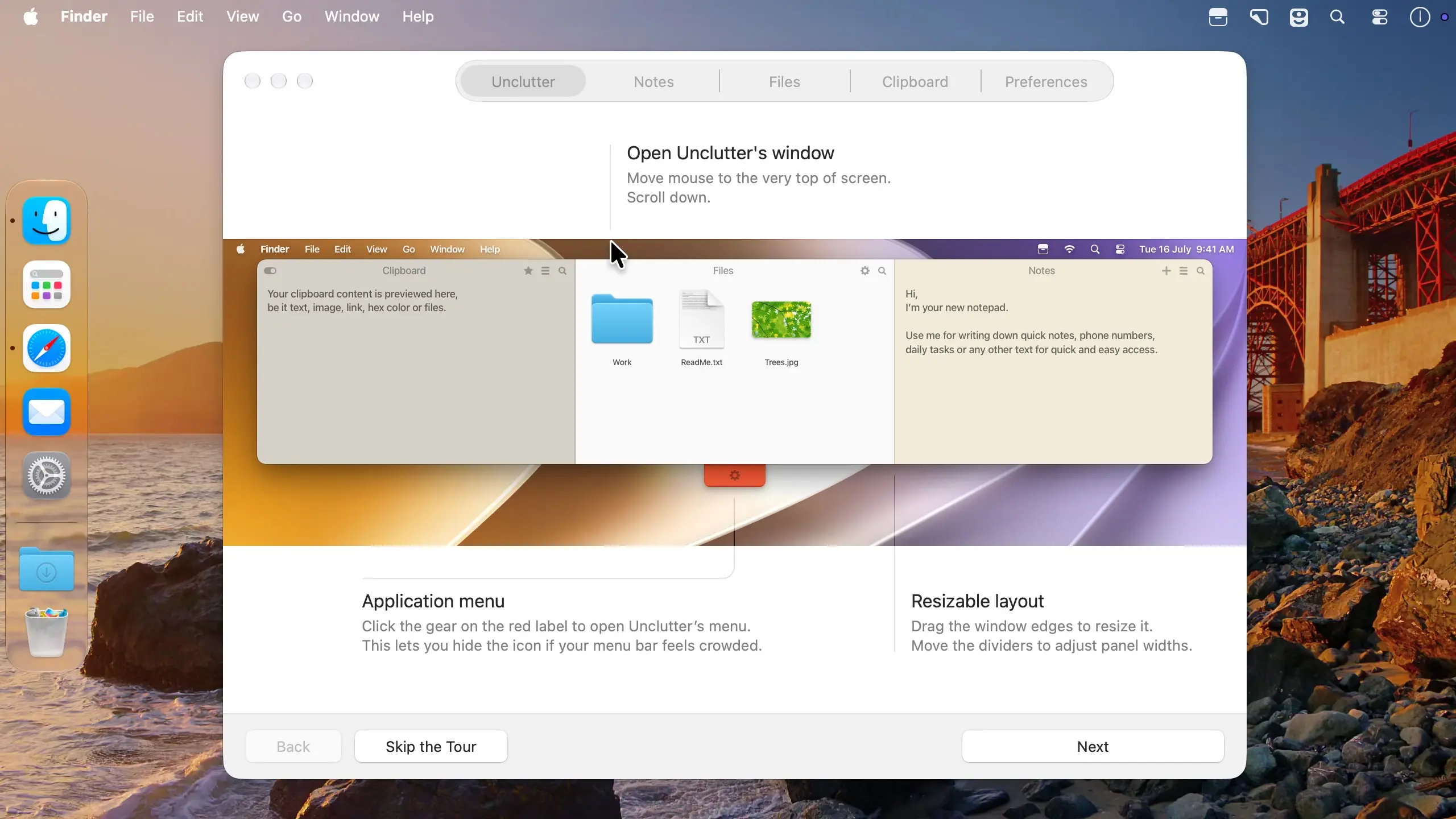
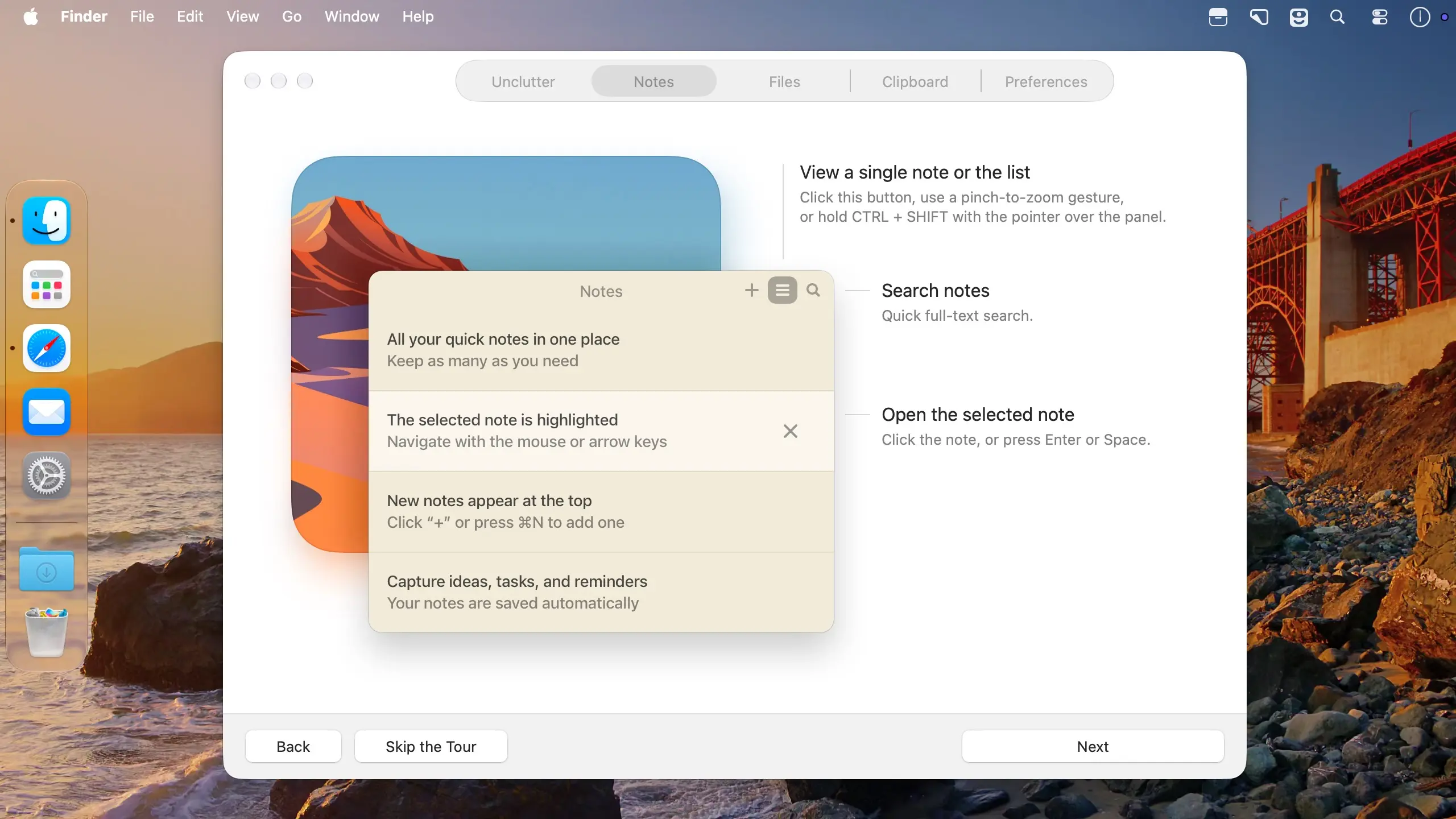
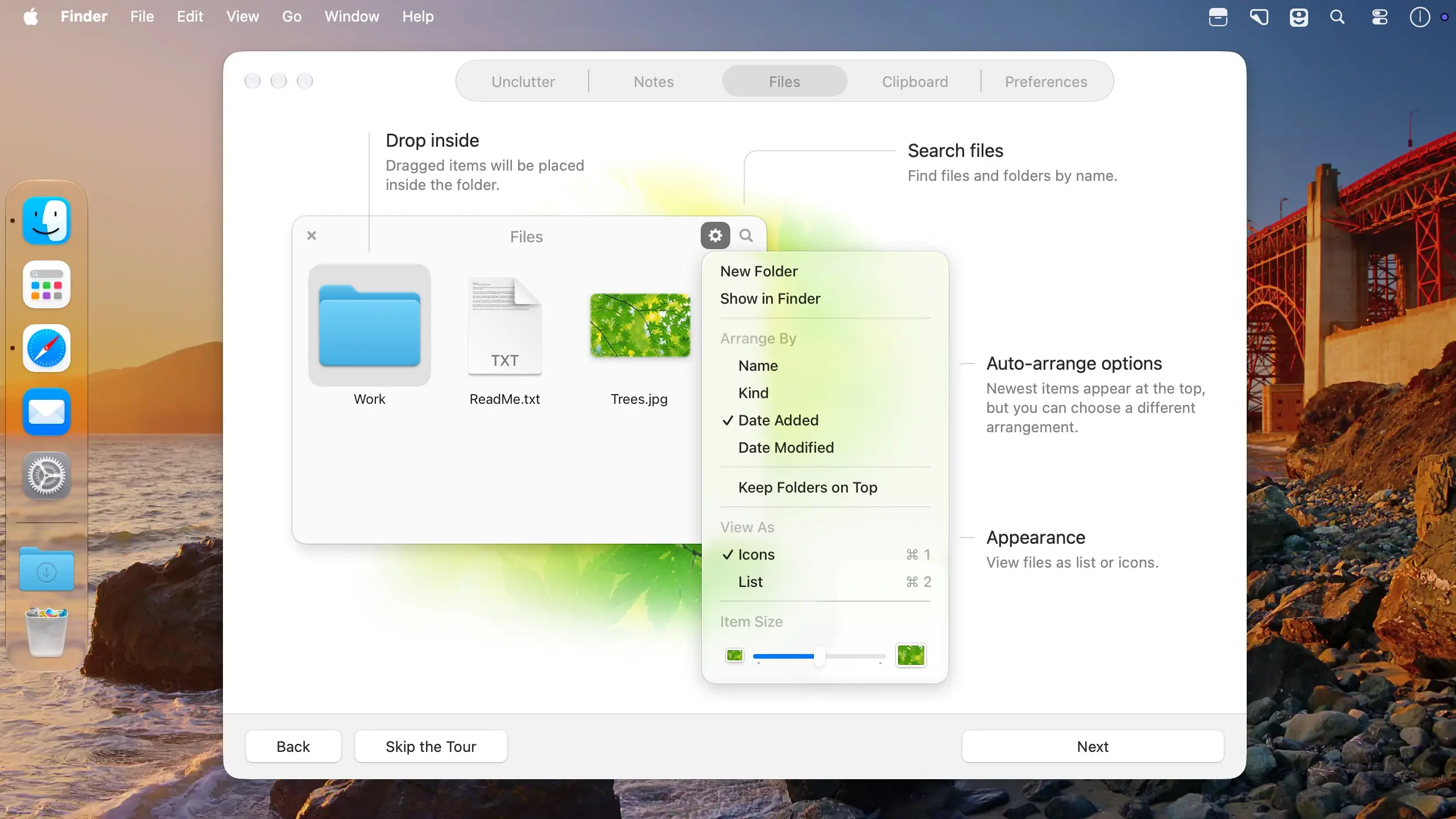
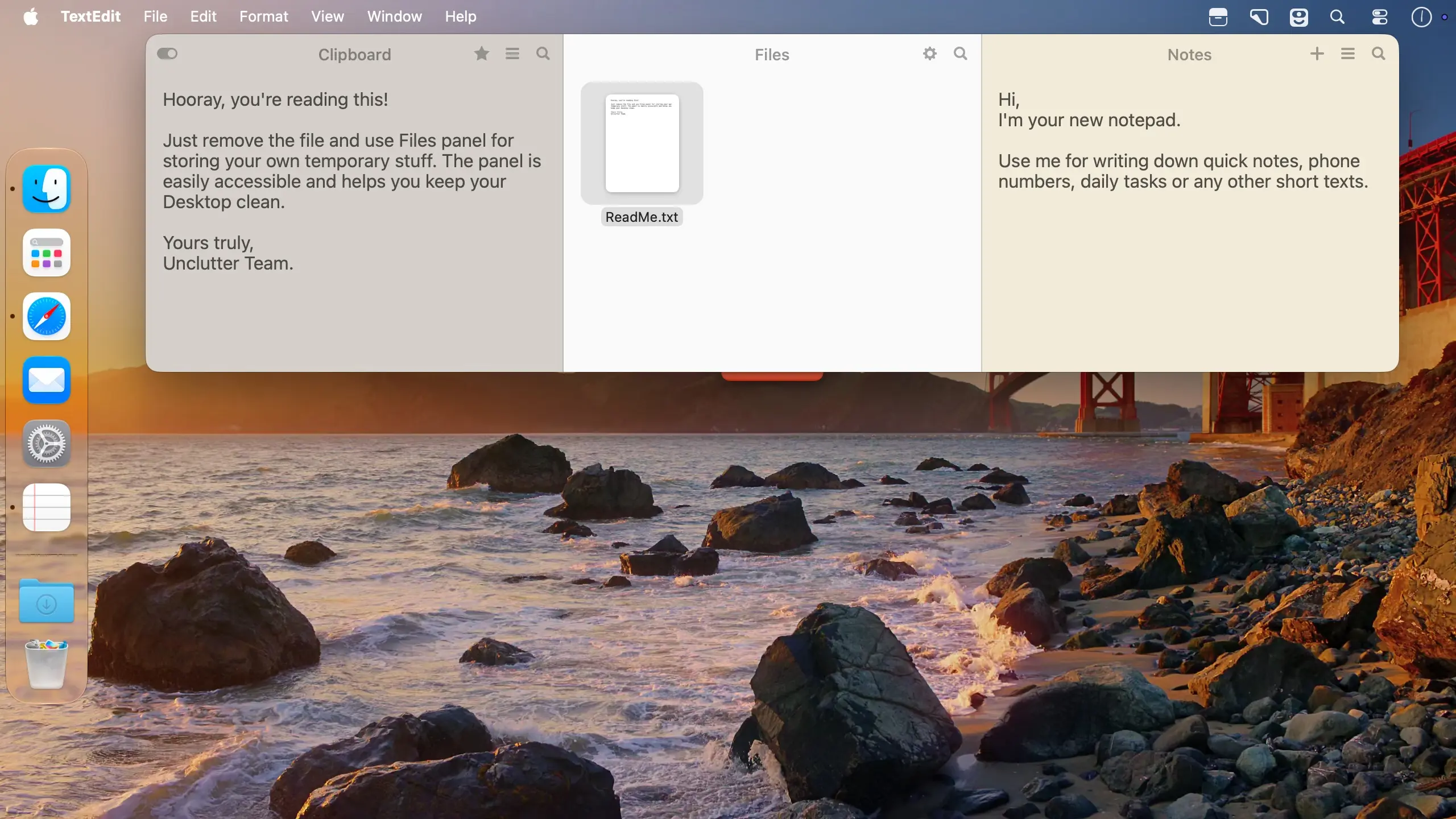
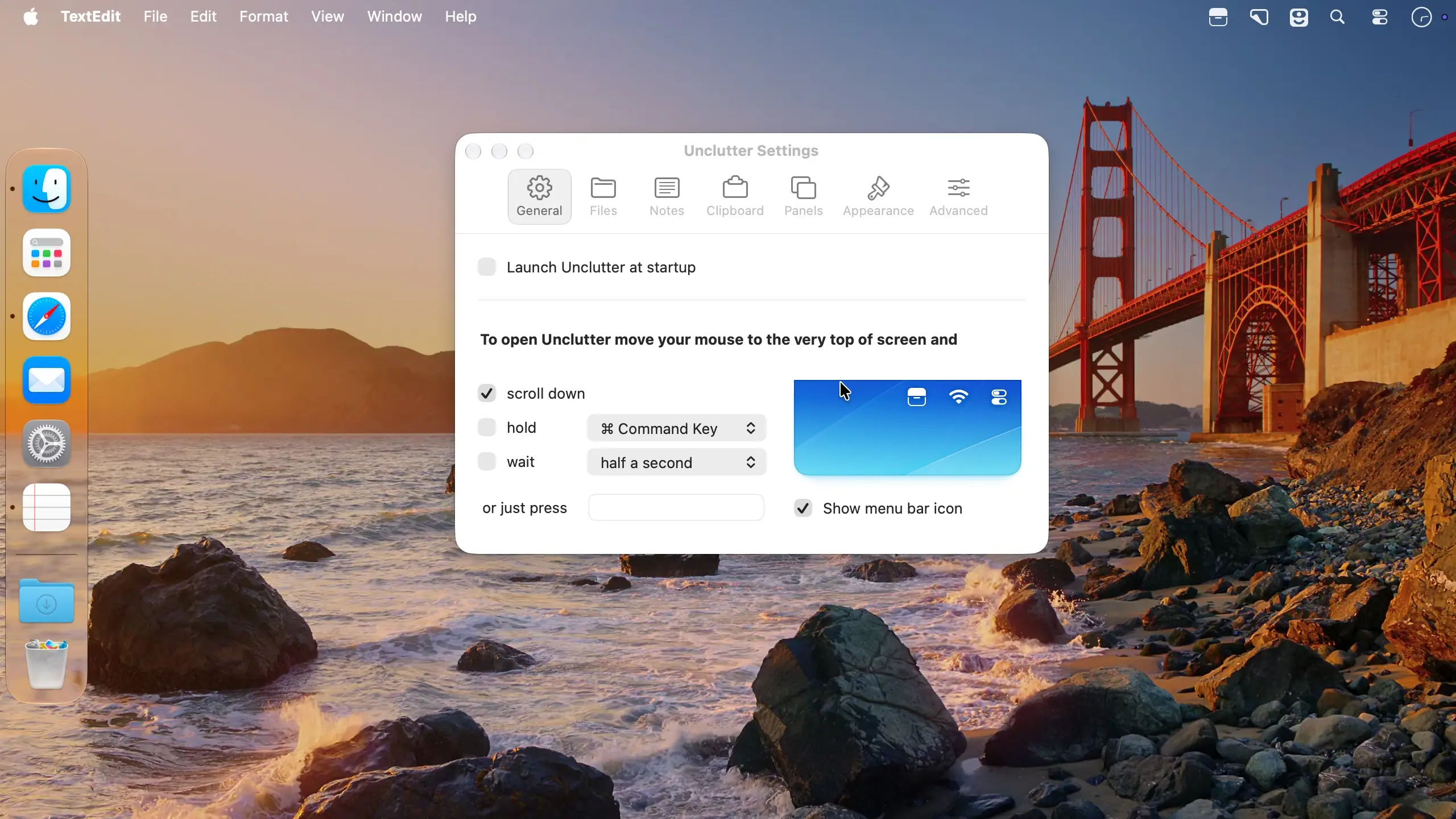
Unclutter adds a shelf above your Desktop that holds files, quick notes, and clipboard history. It stays hidden until you move the pointer to the top edge of the screen and scroll down, so the Desktop stays clear and the things you're working with are still one gesture away.
Files
Drop files and folders into Unclutter to keep them close without piling them up on the Desktop. Preview them with Quick Look, rename, compress, share, move them into subfolders, or drag them back out when you need them.
Notes
Jot something down without opening a text editor. When you need it again, full-text search finds the note.
Clipboard manager
Unclutter keeps a history of what you copy, including text, links, images, and files. Recall any recent clip and star the ones you want to keep in Favorites. You can pause tracking with one click, and copies from apps you mark as sensitive, like your password manager, are ignored.
How it works
- Open the shelf: move the pointer to the top edge of the screen and scroll down.
- Add files: drag them to the top of the screen to drop them in.
- Keyboard shortcut: set your own in Settings if you'd rather skip the pointer.
And more
- Displays and Spaces: works on every display and Space, even over full-screen apps.
- Panel layout: drag panels around to rearrange them, or pull one out to keep it on top of other windows.
- Resizing: freely resize the window and each panel.
- Sync: files and notes sync across your Macs via iCloud Drive, Dropbox, or other cloud services.
- Universal Clipboard: supported.
- Automation: use Shortcuts and AppleScript to automate tasks.
- Themes: light and dark.
- Performance: runs natively on Apple silicon and Intel Macs.
Version 2.3.0
This is our biggest update in years, bringing improvements to every part of the app.
- Unclutter is now compatible with macOS 27 Golden Gate.
- A redesigned app icon that adapts to the default, dark, clear, and tinted appearances on macOS.
- A refreshed look that feels more native to macOS.
- Smoother interactions and animations across the app. You'll notice the difference when you open/close Unclutter, resize the window, or drag a panel around.
- Smoother interactions and animations, including Unclutter opening/closing, resizing, panel dragging.
- Window resizing made simple. Just drag an edge or corner to resize Unclutter. That also means you can now choose how much horizontal space Unclutter takes up on your screen -
something many of you have asked for. - Shortcuts support. Build your own workflows in Shortcuts with 22 new Unclutter actions. Run your shortcuts from Spotlight or Siri. Choose what Shortcuts can access in Unclutter
- Settings → Advanced. The new actions require macOS 13 Ventura or later.
- Unclutter now uses your Mac's memory more wisely (200-300Mb less in average).
- Fixed numerous reported crashes and bugs.
CLIPBOARD:
- Search History and Favorites. Quickly find clips by their text (link, email address, filename, or a color code). Select a result to put it back on your clipboard, ready to paste.
- Better color previews. Clipboard recognizes more CSS color formats, including HSL, OKLCH, and Display P3. Color swatches show transparency, and copying a color clip preserves the
original code.
FILES:
- Save screenshots straight to Files. In the macOS Screenshot app, choose the folder shown in Unclutter Settings → Files as the save location.
- A redesigned, more Finder-like list view: alternating row backgrounds, larger type, and clearer selection make files easier to scan in light and dark mode.
NOTES:
- Markdown file support. Unclutter Notes now opens both MD and TXT files. And while it's still a plain-text editor, you can have both file formats in your list (hello, Obsidian users!). You can also choose the file extension for your new notes in Settings → Notes.
- Smarter search. The Notes panel now uses Apple's SearchKit to make your notes easier to find.
- Safer saving and recovery. We've added a few layers of protection to help keep your data safe. For example, Notes now saves a separate backup file when edits conflict. If a save fails, you can retry or move your notes to another folder.
Comments
No comments yet. Be the first.