

JPEG Jackal 4.0.0
Batch photo compressor for Mac, keep originals safe
Screenshots
Click to enlarge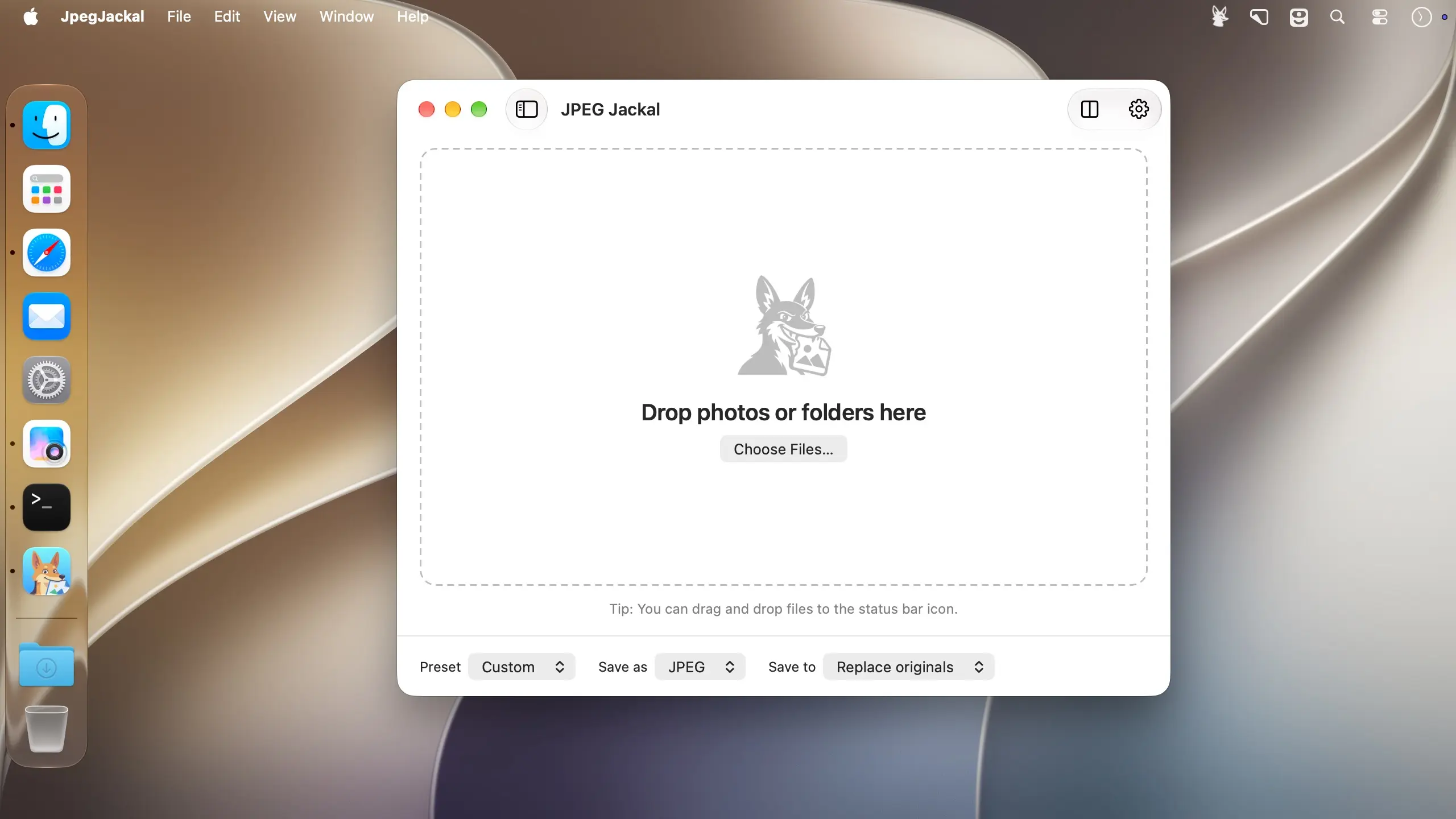
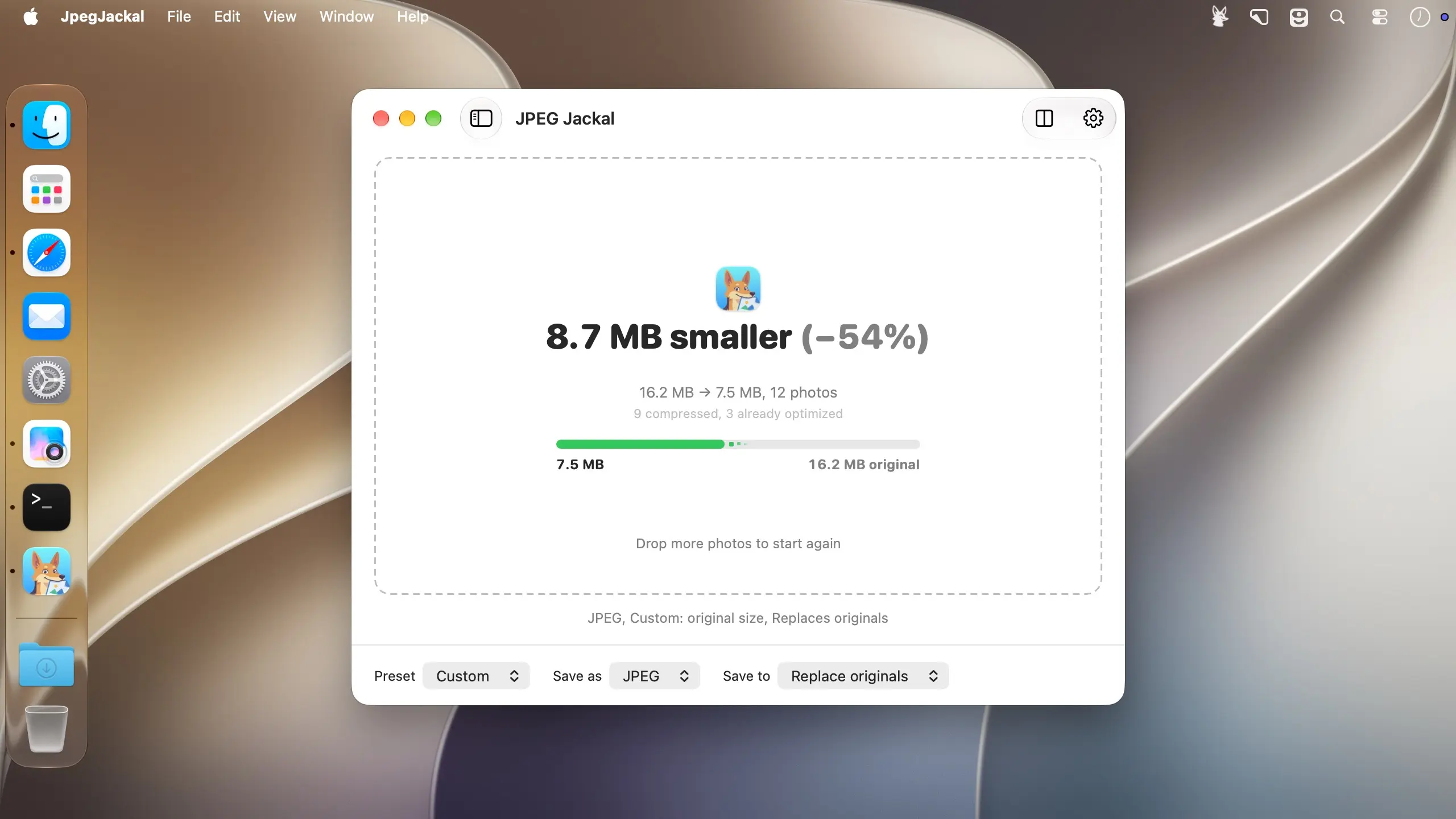
JPEG Jackal compresses and converts photos on your Mac, one image or a whole folder at a time. You pick JPEG or PNG and the size you need, and the files come out ready to email, upload or archive. Everything is processed on your Mac, nothing is uploaded, and there are no ads or accounts.
Start from wherever the photos are
Drag images straight out of Photos, Mail or Safari. You can also drop files and folders on the app window, the Dock icon or the menu bar icon. If you're already in Finder, right-click and use Services to compress without opening the app first.
Choose the format, quality and size
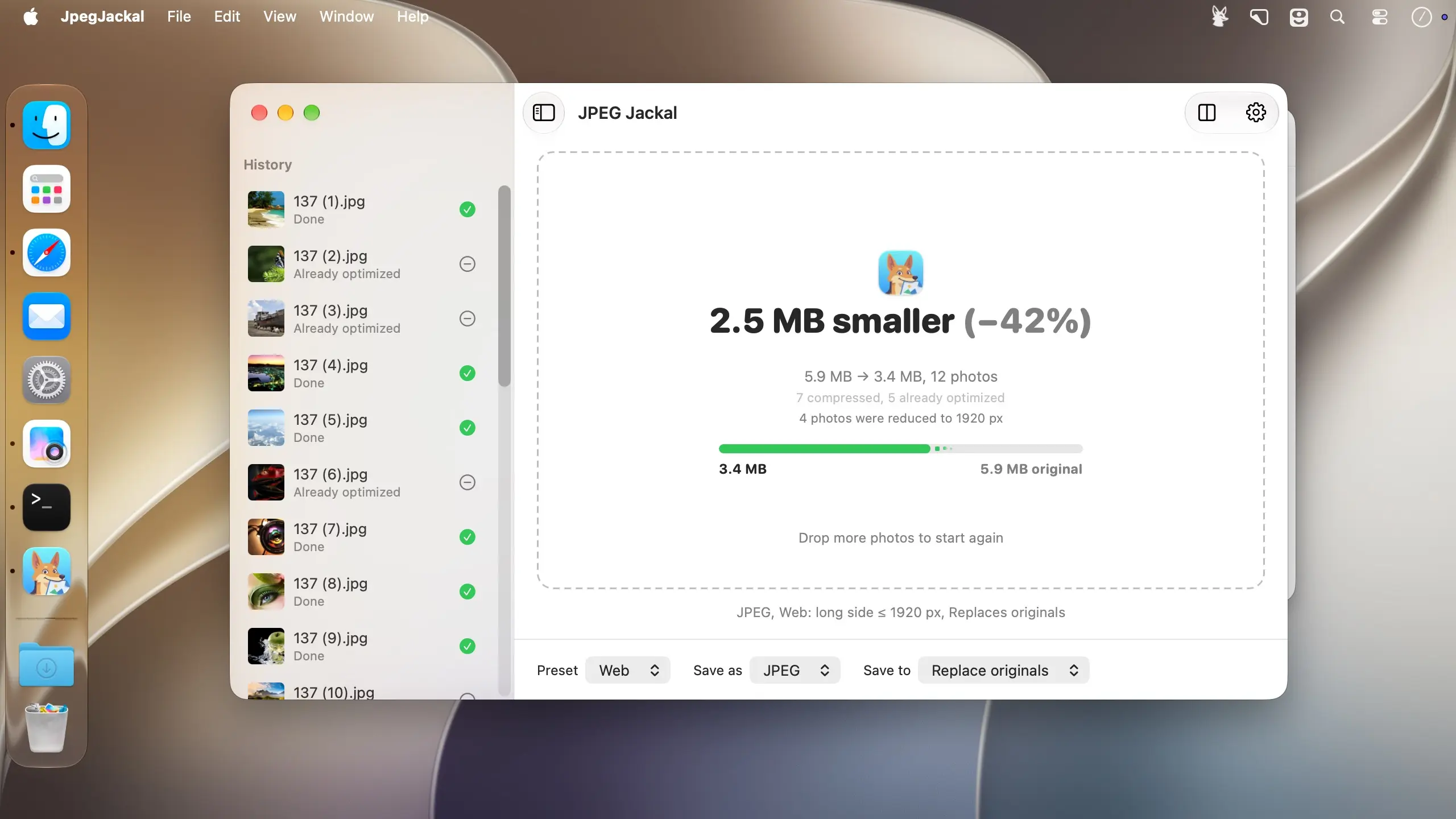
Presets handle the usual jobs, and custom settings are there when you want to dial things in.
- Output formats: save as JPEG or PNG. PNG, GIF, BMP and TIFF source files can be turned on in Settings.
- Presets: Web, Email, High quality and High compression.
- Custom settings: set your own quality and size.
- Resizing: pick S, M or L, or enter your own size based on the long side, the short side, or a fit within a width and height.
Decide what happens to the files
Send the results to a folder of your choice, or work directly on the originals.
- Save to a folder: the subfolder structure is kept, so a folder of trips and events stays organized.
- Replace originals: available after a confirmation. Replaced files keep their dates and Finder tags, and the originals can go to the Trash instead of being overwritten.
- Space saved: see how much room you've freed, for each run and across all time.
New in JPEG Jackal 4:
- Convert while you compress: Save as JPEG or PNG
- Drag photos straight from Photos, Mail and Safari
- Resize to S, M, L, by long or short side, or to fit a box
- A new main window, with the save mode and format at hand
- Drop on the Dock icon, use Open With, or paste files copied in Finder
- Replaced files keep their dates and Finder tags, and "Move originals to the Trash" is a new option
- Show Last Output and a Hide Dock icon option
Fixes:
- The red button now only closes the window: the app stays in the Dock and a running batch carries on
- Quit stops the queue cleanly and saves the history first
- A file that is incomplete or still being written is no longer replaced
- All-time statistics no longer go down when a file got larger
- Files ending in .tif, jpe and jfif are now recognized
Comments
No comments yet. Be the first.