
Mole 1.20.1
Mole: Mac system maintenance app for cleaning and optimization
Screenshots
Click to enlarge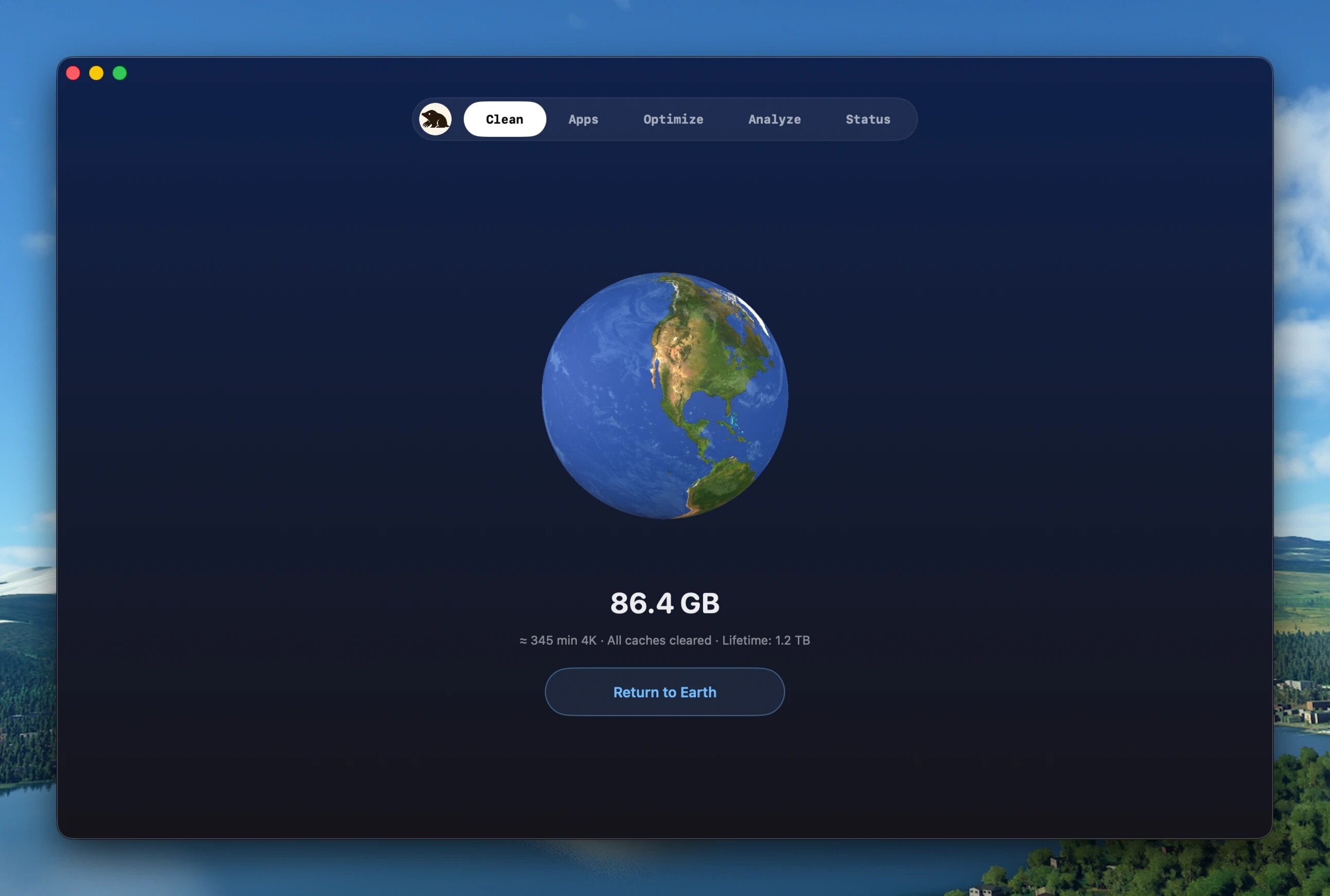
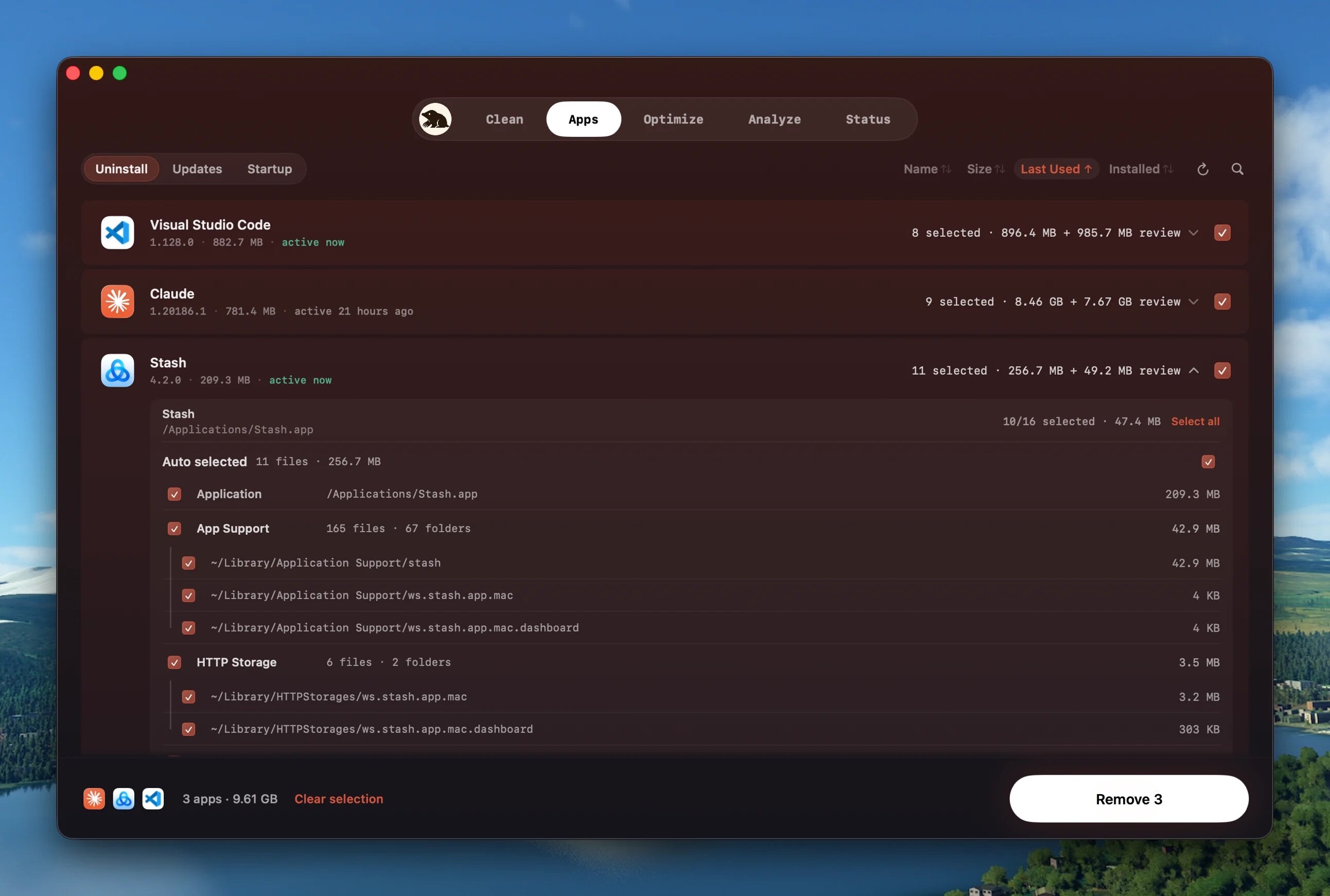
Mole is the all-in-one system maintenance solution for Mac users who want complete control over their computer's performance without juggling multiple tools. By consolidating cleaning, optimization, analysis, and health monitoring into a single app, Mole simplifies Mac maintenance and frees up valuable disk space.
What You Get
Comprehensive Cleaning & Optimization
Remove junk files in seconds—clear caches, logs, and temporary files; eliminate app remnants and startup clutter from your Dock; and handle system maintenance tasks with a single click.
Transparent, Security-First Approach
Mole operates locally with zero network uploads of your files or browsing history. Before any action is taken, you'll see exactly what will be removed and how much space you'll recover—then confirm before cleanup begins.
Smart Performance Monitoring
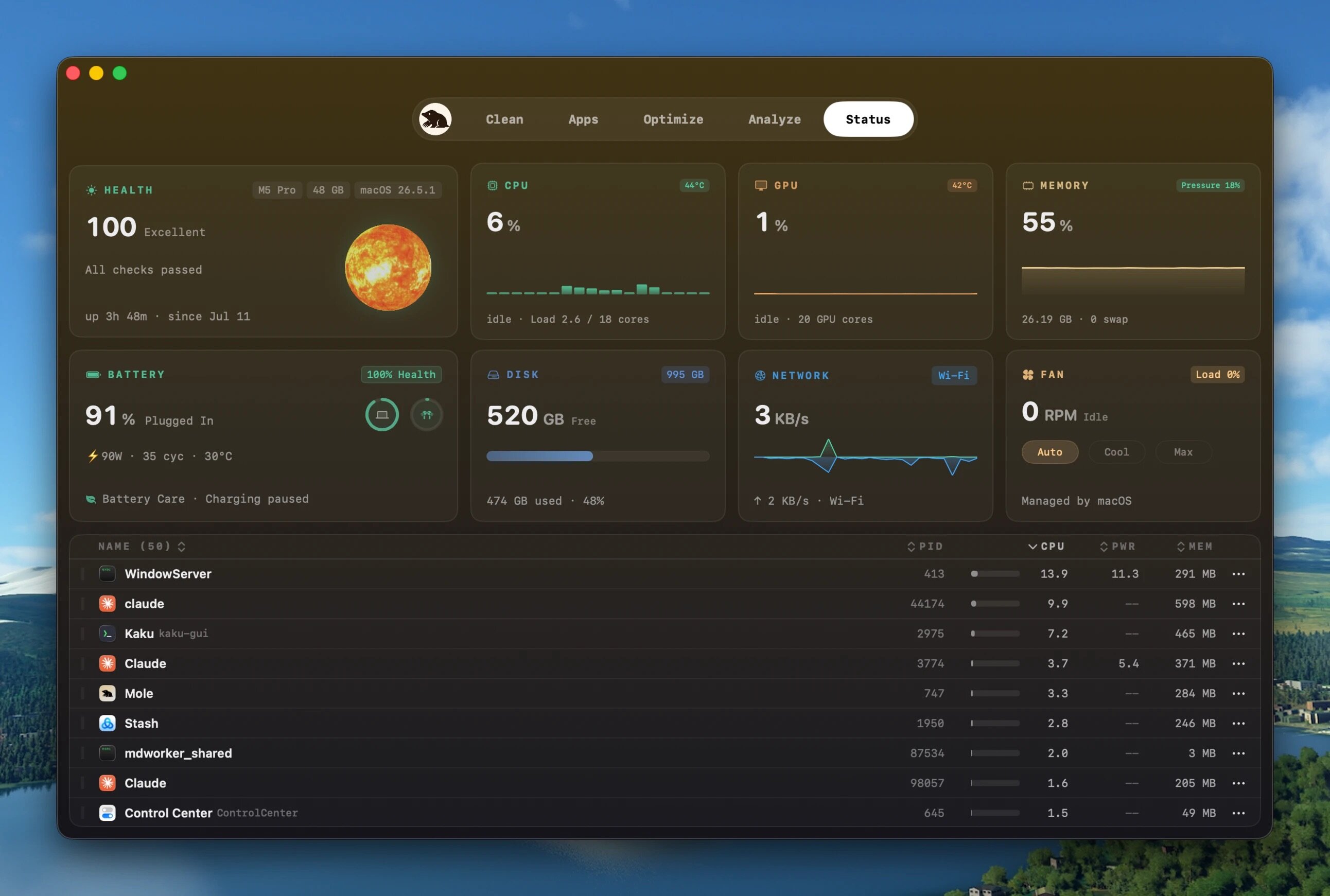
Get real-time insights into CPU, memory, GPU, disk, network, battery charge, and temperature usage. Analyze disk space visually with interactive tree-view maps to identify what's consuming room on your drive.
Safe & Intelligent
Deep disk scanning with full access combined with automatic detection means Mole actively skips anything suspicious, protecting your system while delivering thorough results. No guesswork—just safe, reliable maintenance.
The Result
Keep your Mac running smoothly, maximize disk space, and maintain peak system health—all without compromising privacy or security.
Version 1.20.1:
- Command-line tools: The uninstall list now includes command-line tools: those installed with Homebrew and AI tools such as Gemini CLI appear after apps, each with its own icon. After a Homebrew tool is uninstalled, the details list the dependencies removed with it.
- Uninstall: When several apps are moved to the Trash together, their leftovers are cleaned up in a single window, and leftovers that could not be removed without Full Disk Access can be retried once access is granted. Uninstalling Docker Desktop also removes its images and containers. Clear Data Only has moved from the right-click menu to the footer and appears while a single app is selected. Items inside personal folders such as Documents and Music are no longer listed as leftovers.
- Clean: Items in the Trash are no longer selected by default. Clean now lists files in iCloud Drive’s Trash, old app copies left behind by updates, and snapshots created by other user accounts and other apps. BrowserOS and T3 Code caches are now covered, and project build files are also searched for in ~/Developer. Apps quit for cleaning reopen automatically when it finishes, and leftovers of removed apps that start their background jobs with open are now recognized.
- Clean safeguards: The chat list of older Codex versions and the browsers installed by Camoufox, Puppeteer and Cypress are no longer cleaned as caches. Cache folders that contain an app are not selected by default, and project build files in use are left untouched. Scanning no longer downloads iCloud folders stored only in the cloud, and no longer asks for network volume access while a network share is mounted. Fixed Saved App States failing on every clean.
- Update detection: Now covers Ghostty, Paste, DeepL, Tencent Meeting, Clash Verge Rev, Zen, the older 4K Video Downloader and more. Parallels Desktop is offered only versions covered by your license, apps installed from TestFlight are no longer offered App Store updates, and Microsoft Office no longer shows updates that are already installed. Version numbers for XQuartz and similar apps are now shown correctly.
- In-app updates: Apps that ship only an installer are updated through their own installer. An update whose download fails verification no longer quits the app beforehand, and checking again after a failed update makes it available again. Fixed Homebrew apps failing to update because of an old copy left behind. Ignore Updates now appears when the pointer is over an app’s row.
- Disk analysis: Folders that hold mostly files are shown as a list, and the side panel groups items by kind, date modified and size. Folders whose names share a prefix show only the part that differs. The Applications folder shows each app’s icon, and an item that fills its entire folder opens directly into its contents. The right-click menu for Docker, Ollama and Xcode simulators offers each tool’s own cleanup command. Scans no longer stall on folders stored only in the cloud, such as in iCloud Drive or Proton Drive.
- Hide Desktop: Hide Desktop Icons has been added to the menus. Press ⌃⌥⌘H in any app to hide or show the files and disks on your desktop.
- WiFi Low Latency: Stays on when you switch networks or move to Ethernet, and can also be turned on while connected to Ethernet. The first time you turn it on after updating, you are asked for an administrator password once.
- Status and menu bar: The menu bar can now show charging power. The GPU reading in the menu bar keeps refreshing while the panel is closed, and other readings no longer jump around when network speed is shown. Process search on the Status page finds idle processes, and the menu bar’s Eject control supports external hard drives and Thunderbolt drives. The menu bar character stays still with Reduce Motion on. The Status page no longer refreshes in the background after you switch to another user.
- Network: The Network tag in the menu bar panel shows the exit country’s flag, and rows in the network list offer Reveal in Finder and Stop on right-click. With a proxy in TUN mode, the network card shows the Wi-Fi LAN address, and traffic is no longer counted twice with more proxy and VPN apps.
- Interface: App icon colors have been refined. Decimals follow your region’s format, list rows can be selected with the Tab key, and the line that opens details on completion screens is more prominent. Rows awaiting confirmation in the Clean list no longer show a Review label that resembled a button.
- Fixes: Clearing large numbers of Codex chats is faster, and startup items launched with open are shown under their app’s name. Fixed readings not refreshing after the system clock is set back, enabled switches appearing grey while the window is in the background, an item left in the Trash after uninstalling that could not be emptied, a microphone alert triggered by voice input through an input method, and Optimize’s Spotlight rule cleanup having no effect.
Comments
No comments yet. Be the first.